Setup Linked Integration Runtime
What is a Linked Integration Runtime?
A linked integration runtime is an Azure Data Factory (ADF) feature that enables you to establish a connection between two data sources, even if they are located in different networks, data centers, or regions. This integration runtime acts as a bridge between the two data sources, allowing data to be transferred between them.
Prerequisites:
Before setting up a linked integration runtime, you must ensure that you have the following prerequisites:
- An Azure subscription
- Access to the Azure portal
- Data sources that you want to connect through the integration runtime
- Permissions to create linked integration runtime
Steps to setup linked integration runtime:
Step 1: Create a Linked Integration Runtime
You can create a linked integration runtime by following these steps:
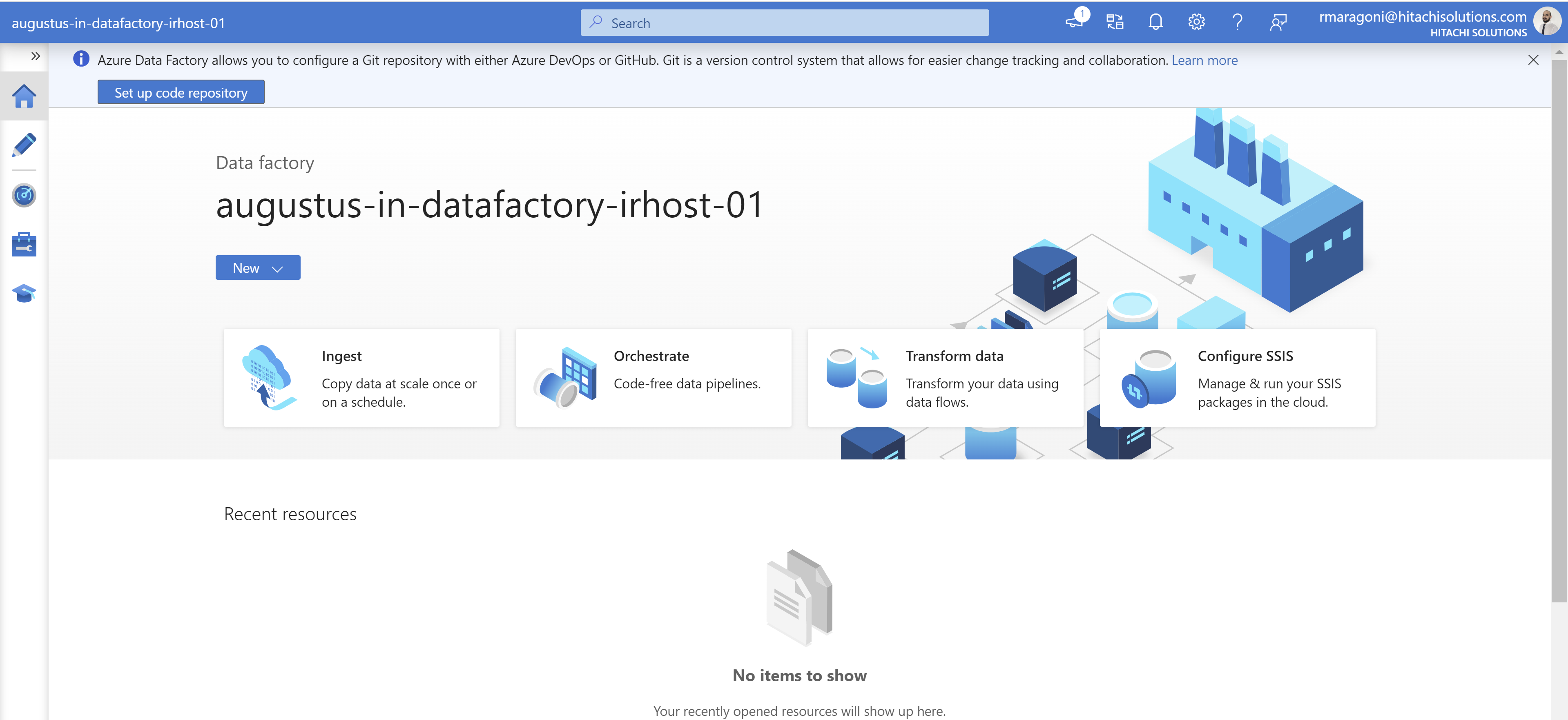
- Firstly, In the Azure portal, navigate to the Datafactory named augustus-in-datafactory-irhost-01
2.Click on the "Integration Runtimes" tab
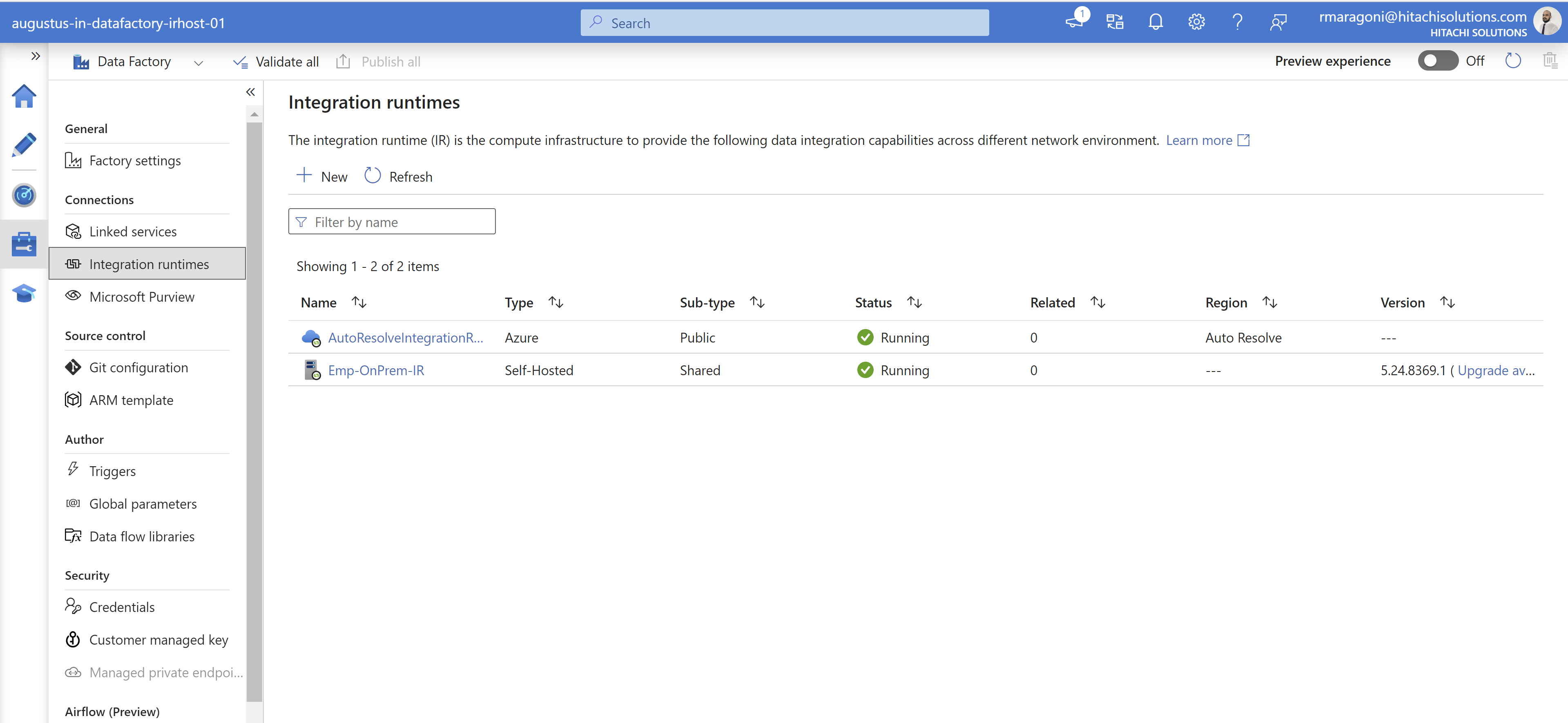
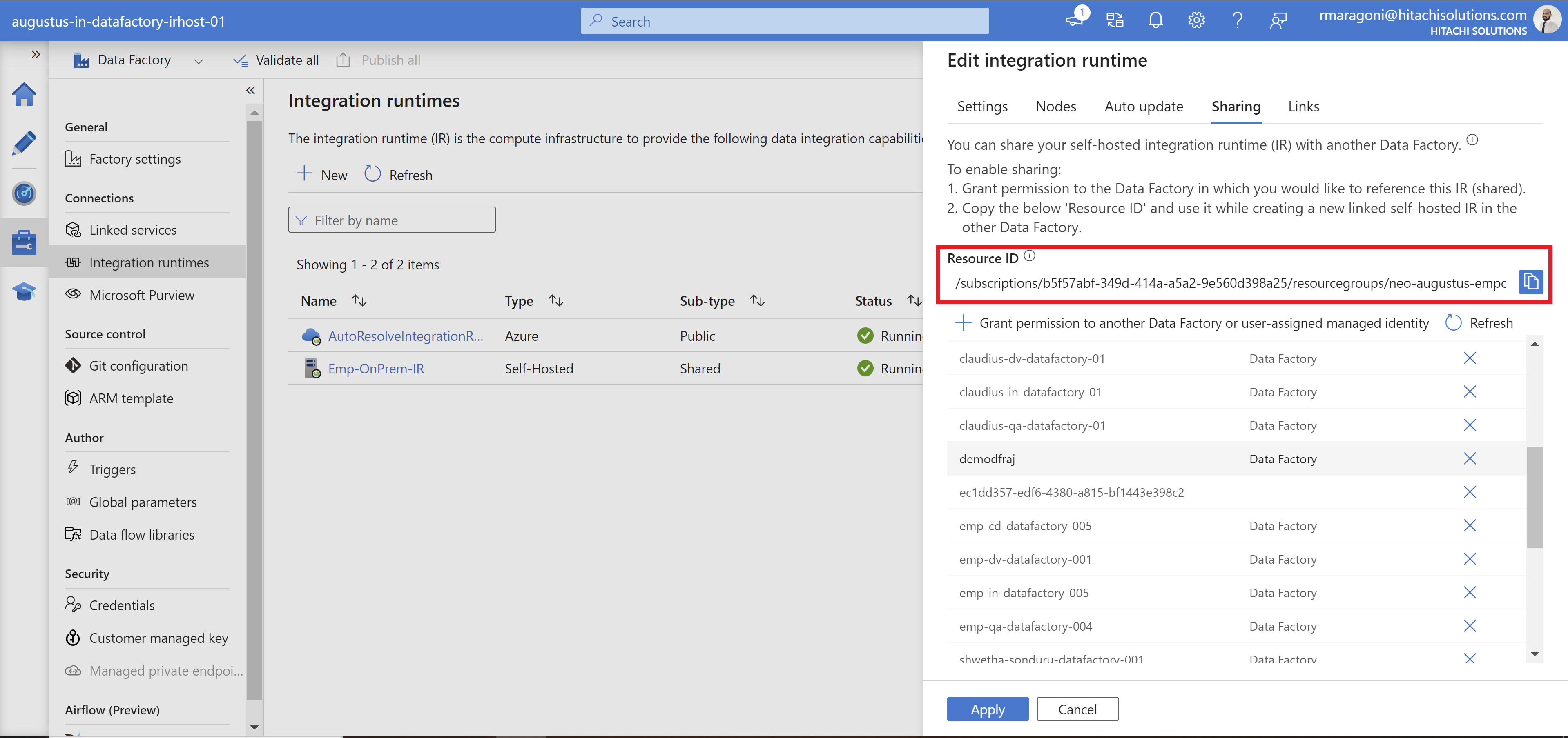
3.Click on the "Emp-OnPrem-IR" and you will be navigated to a screen where you need to click on Sharing to grant permissions to the new datafactory that you have created. In this case i have a created a datafactory with the name as demodfraj.
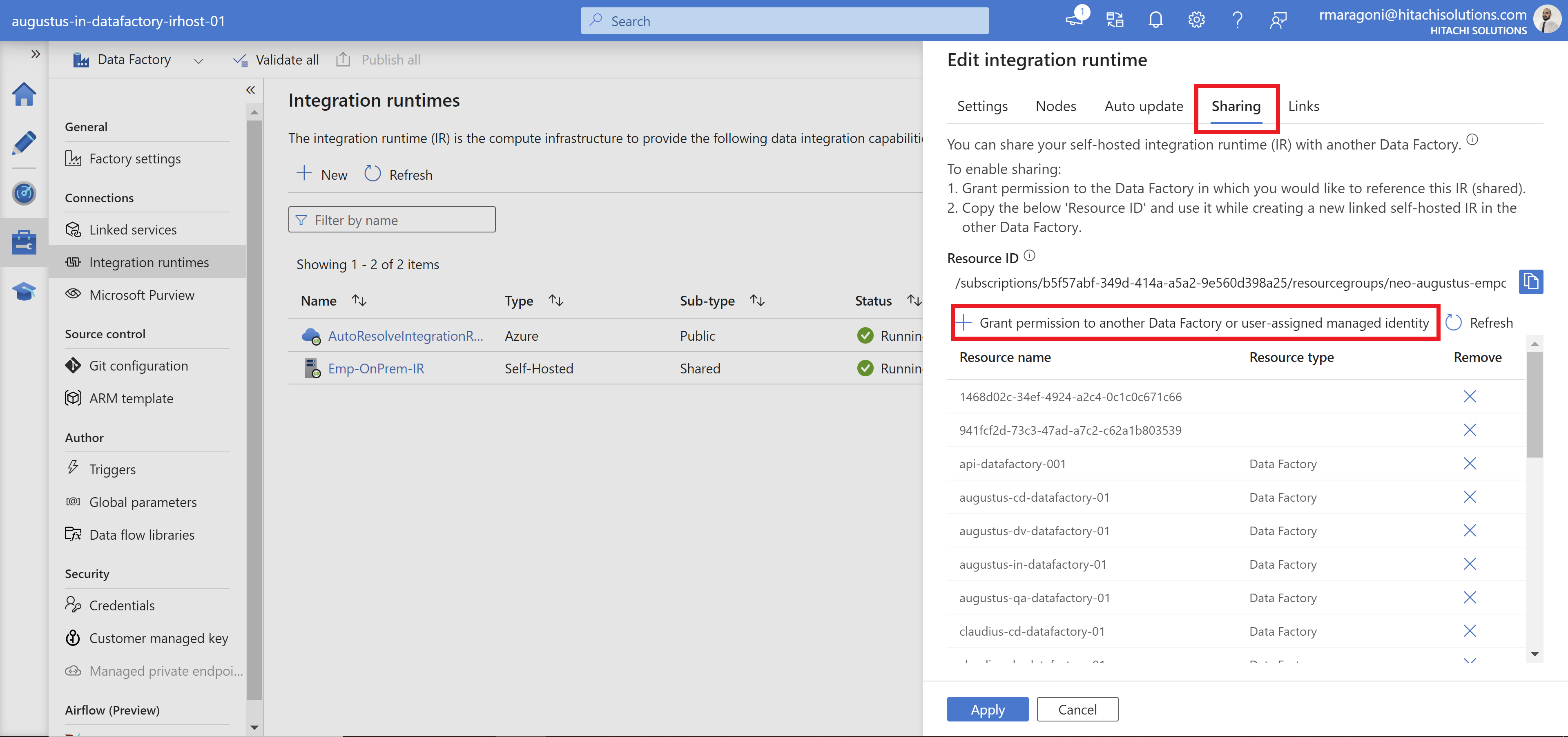
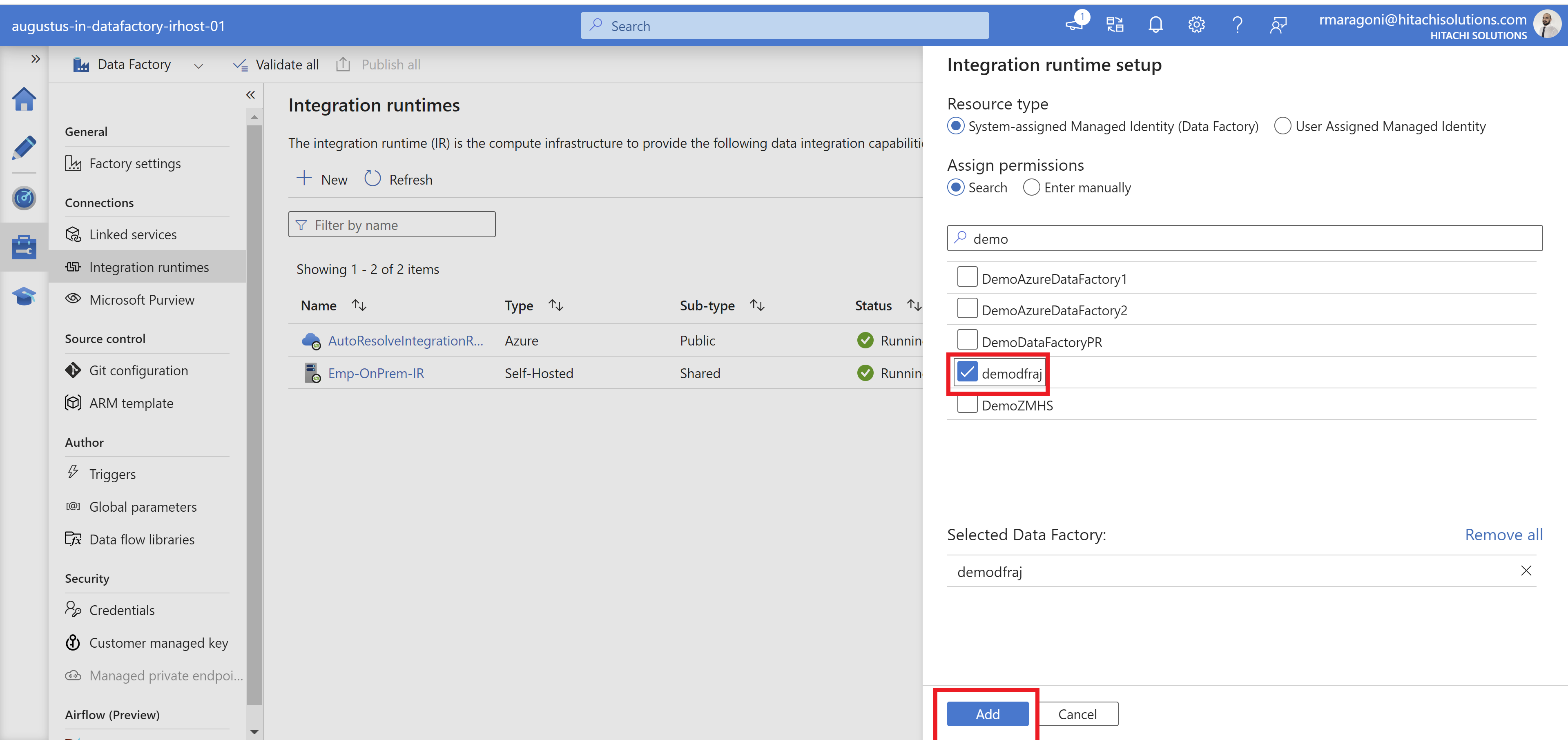
- Click on '+' sign as shown in the above image to grant permission to the datafactory, it will take you to the below screen to add your datafactory, select and hit on add.
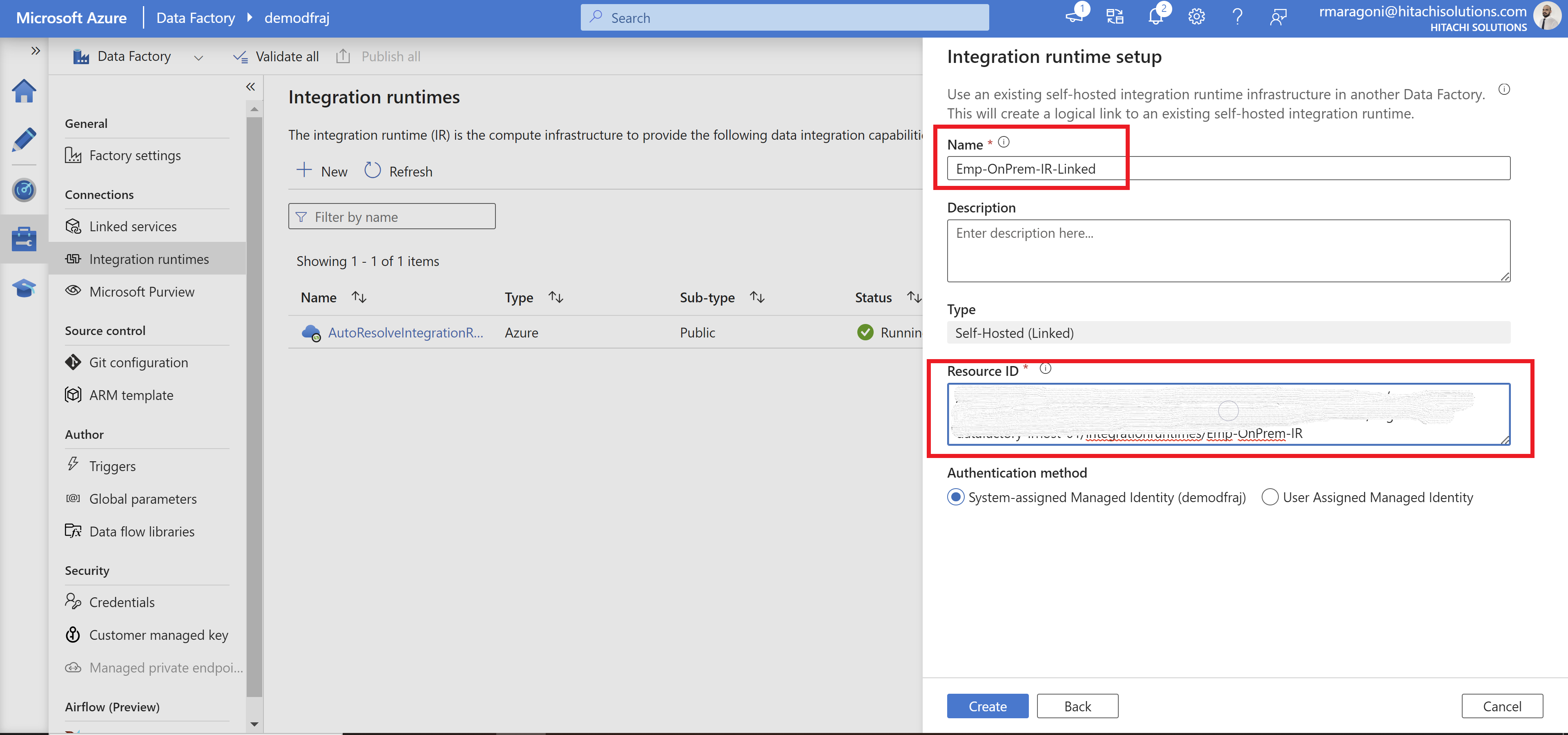
- Now you have successfully added your datafactory and Copy the Resource ID which you need to add while creating linked IR
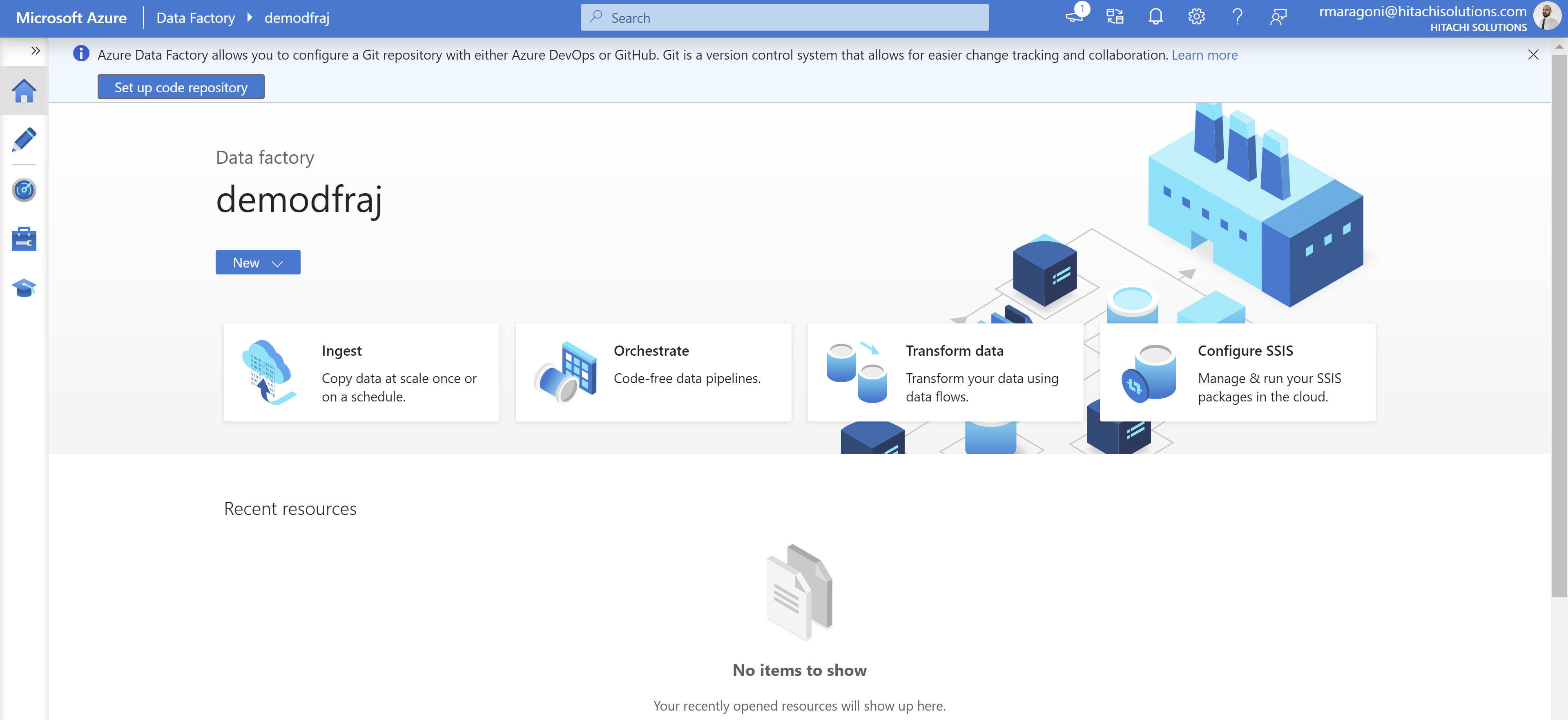
- Navigate to the Data Factory that you have created to set up linked IR
7.Click on the "Integration Runtimes" tab
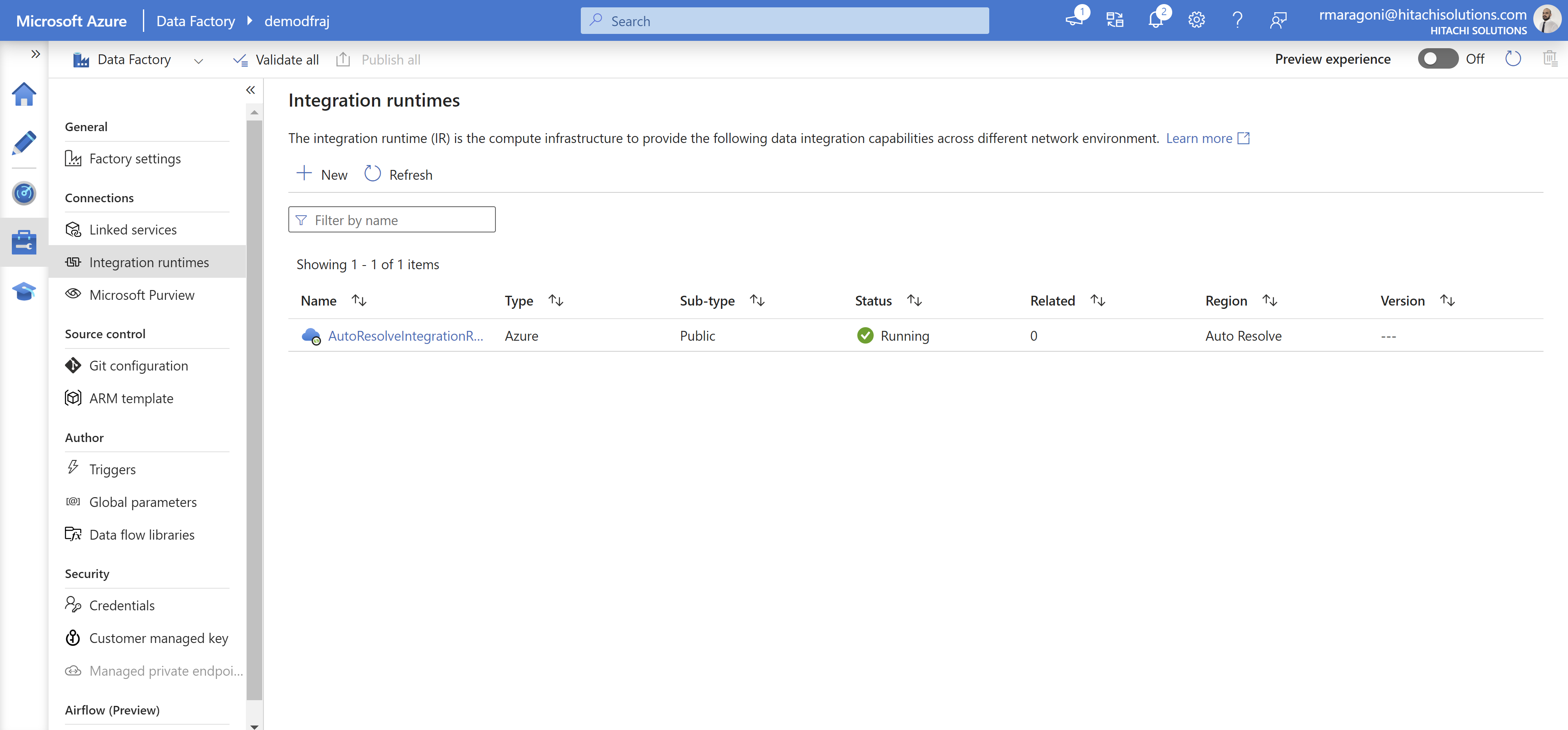
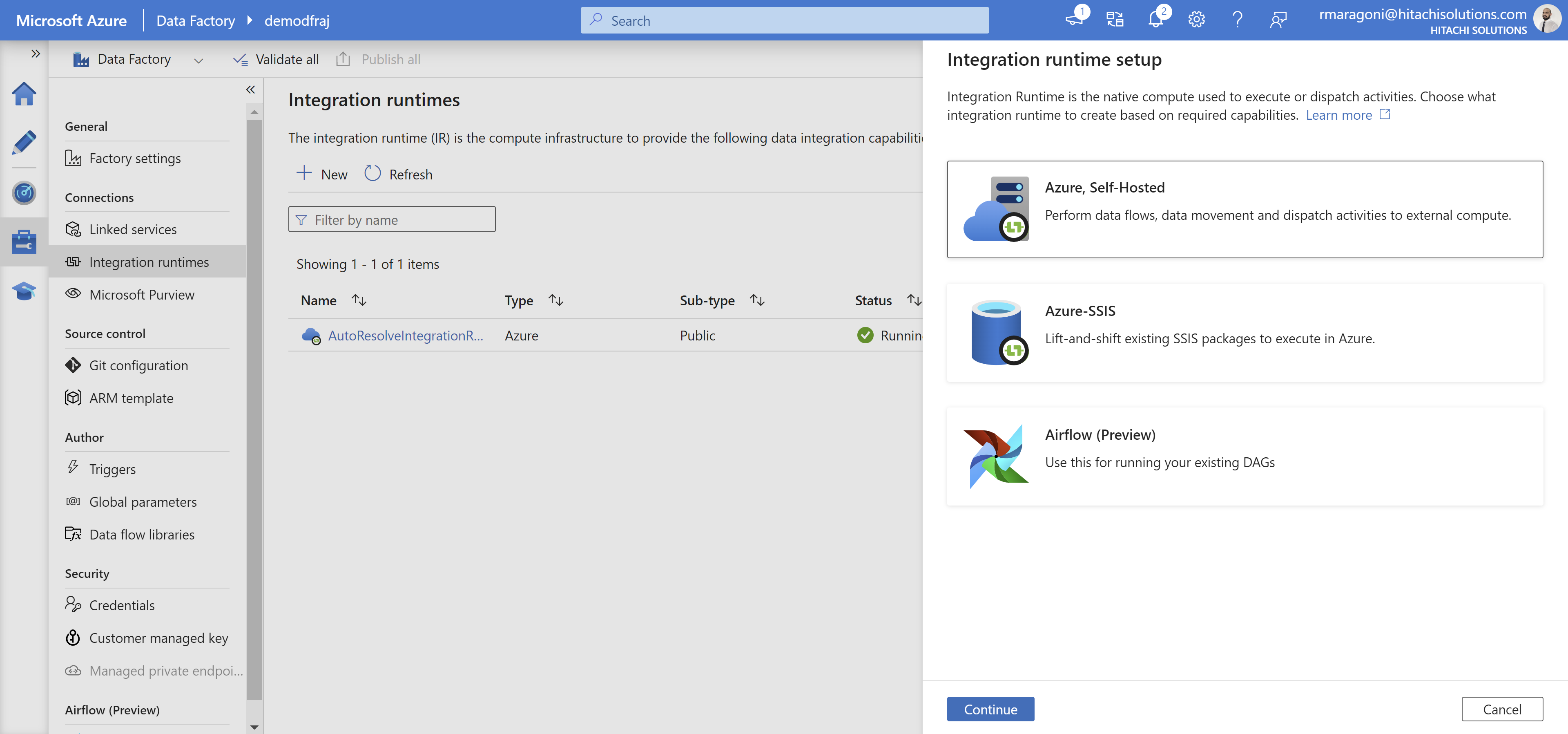
8.Click on the "+ New" button and select Azure, Self-Hosted and hit on continue
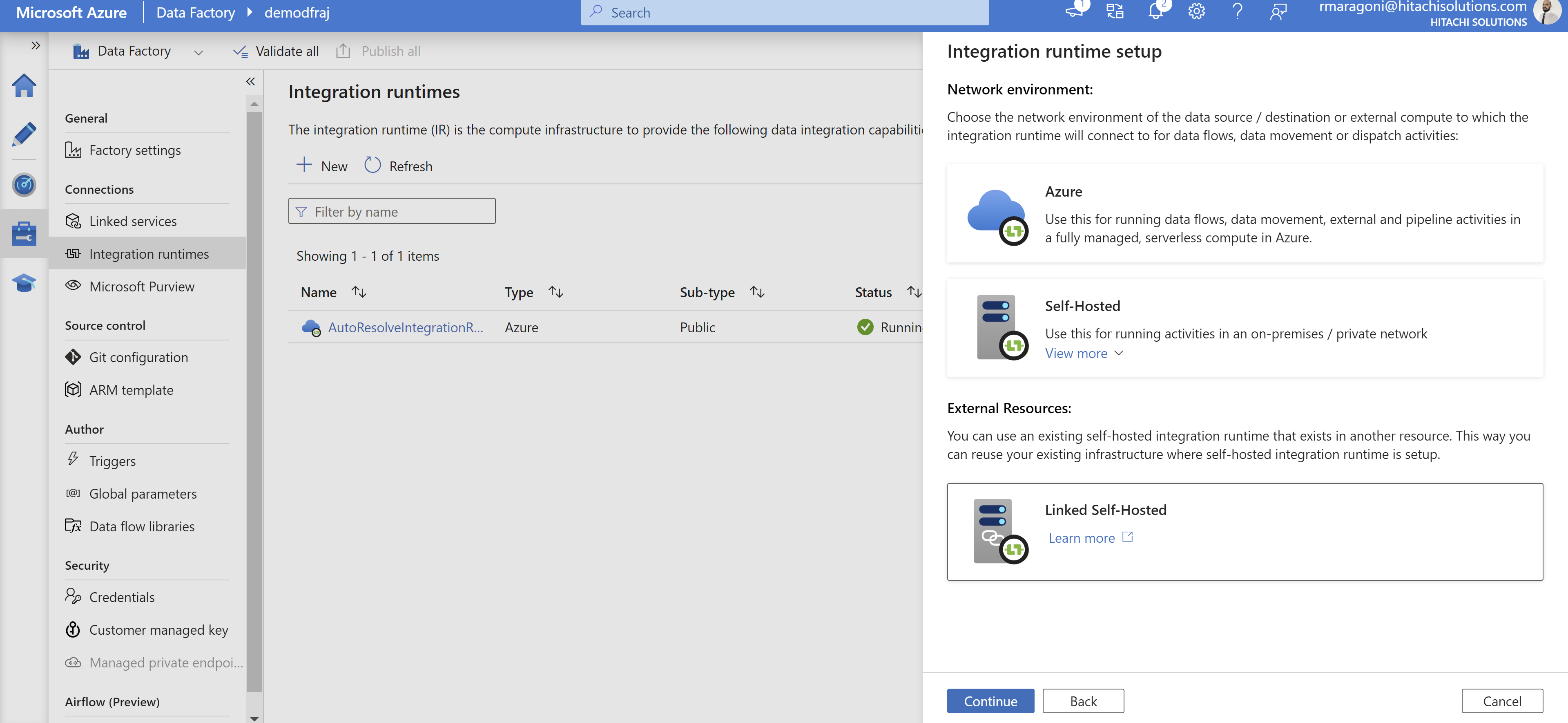
9.Select "Linked Self-Hosted" from the list of integration runtime types and hit on continue
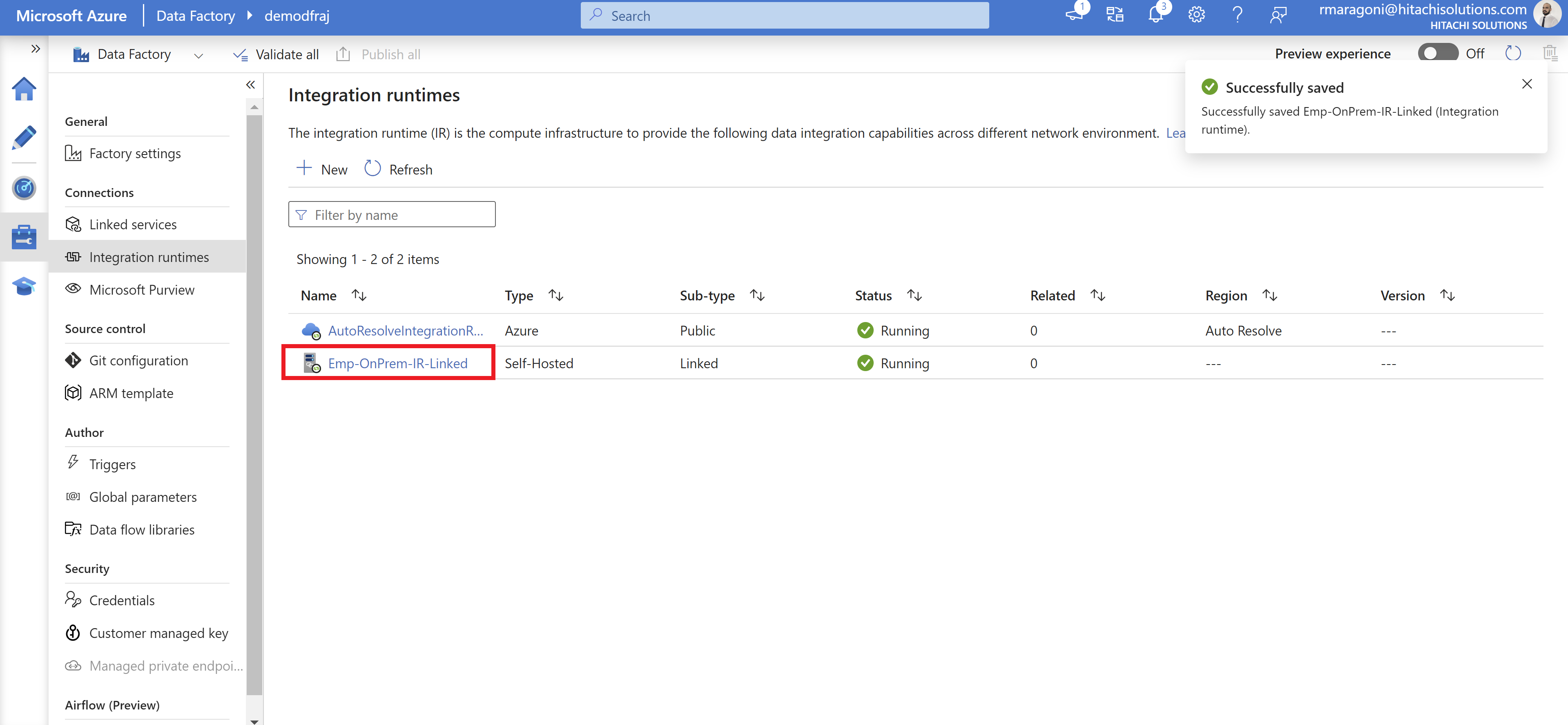
- Here you have to name the linked IR as Emp-OnPrem-IR-Linked and paste the Resource ID you copied from the augustus-in-datafactory-irhost-01
- Now you have successfully Setup the linked IR