Time Off Process
:::note Table of Contents
- Time Off Timesheet Codes
- Policy
- Discretionary OOO
- Sick Leave
- Communicating Discretionary and Sick Leave
- GlobalLogic Timesheet Instructions for Time Off
:::
Time Off Timesheet Codes
Hitachi NA Team Members, use Project ID: 00000.02.01 - BSG Internal - Time Off
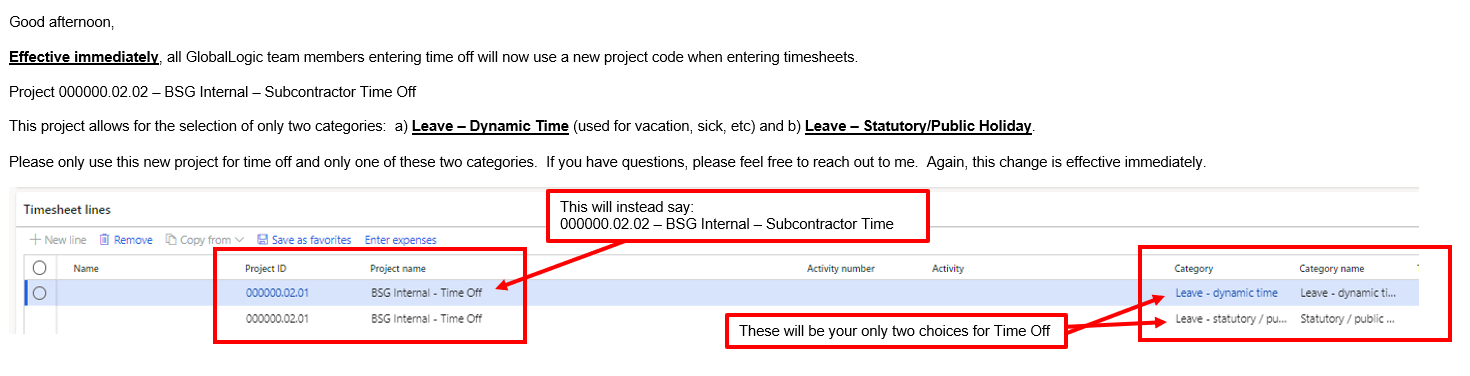
GlobalLogic Team Members, use Project ID 00000.02.02 - BSG Internal - Subcontractor Time
Policy for Time Off
Members of this team are entitled to take off time per your employeement agreement. In general, US team members have "dynamic time" or "unlimited" PTO, while CAD team members have a specific allotment (due to limitations of law).
Discretionary OOO (not sick)
Discretionary leave requires approval.
- In general, approvals are granted for any reason, or no reason at all. Managers may ask for the purpose of the OOO, but it's the policy of this team that OOO shall be granted unless one of the following apply:
- Approvals shall be withheld if the project delivery would be at risk. Plan OOO time as a team and in advance to avoid any issues.
- Approvals must be timely, especially for long absences. Planned trips should be communicated as early as possible.
- OOO should not be excessive or affect job performance. As a benchmark, total annual absences exceeding 4 weeks per year are allowed but may be scrutinized.
- Nothing in this wiki preempts the rights and privileges in the Employee Handbook. Please refer to the handbook for extended leave -- especially parental leave and extended sick leave.
- Exceptions to the policy will be evaluated and approved by VP approval, and if required, a concurrence from the EVP of HR.
Sick Leave
- Please communicate sick leave to your manager as soon as possible, with the nature of the issue, and your expected return to work date. As your situation develops, please keep your manager informed.
- Managers should update workplans and communicate leave for sick staff if they are unable or do not follow the process. Managers are expected to backstop sick staff on the process below.
- Medical leave (including paternity, INCLUDING medical leave due to sickness from a family member) REQUIRE a notification by law to Don Scott and HR if the absence is 3 or more days. (This is because we are required to inform you of your rights!)
- This notification threshold of 3+ days applies to intermittent absences over a 12 month period.
- Vaccinations are considered sick leave and highly encouraged. Please plan vaccines if possible, especially when the dose is expected to cause temporary illness.
- Sick leave which will impact client work should be immediately escalated to your Delivery Manager, Kim Majernik , Kevin Currie, Johan Madrigal, Marty Silibia, and Don Scott.
- Nothing in this wiki preempts the rights and privileges in the Employee Handbook. Please refer to the handbook for extended leave -- especially parental leave and extended sick leave.
Process for Requesting Discretionary Leave
- Talk with your Team Lead about the schedule of days off and obtain written email approval as far in advance as possible.
- 0-3 workdays can be approved by your direct manager.
- 4-8 workdays require your Director/Lead+ approval. (Andrew Fedin, Ashish Tripathi, Michael Green, Kevin Currie)
- 9+ workdays require additional VP approval. (Don Scott / Jan Nelson)
- (For implementations) talk with your Project Team (Delivery Manager) about the schedule of days you plan on taking off and obtain email approval from that person.
- Communicate the leave as specified below IMMEDIATELY.
Communicating Discretionary and Sick Leave
- EW] U Update your workplans in CRM with your planned leave.
- Applies only to employees billing clients
- Create and send a meeting invite with the following details:
- Title invite as “FName LName - OOO”
- Example: “Ursula Conley - OOO”
- Add empowerplatform@hitachisolutions.com as the attendee.
- Mark All Day
- Mark time as FREE
- Uncheck "request responses" under attendee options
- Turn off NOTIFICATIONS
- Check the All-Day box so it will be displayed at the top of the calendar
- Add any other detailed information to the body of the invite
- SEND
Communicating Time Off for Part of the Day
- Create and send a meeting invite with the following details:
- Title invite as “FName LName - OOO from time -time”
- Example: “Ursula Conley - OOO from 10am - 1pm CST”
- Add empowerplatform@hitachisolutions.com as the attendee.
- Mark All Day
- Mark time as FREE
- Add an OOO in your personal calendar so that no one schedules a meeting while you are away
- Uncheck "request responses" under attendee options
- Turn off NOTIFICATIONS
- Check the All-Day box so it will be displayed at the top of the calendar
- Add any other detailed information to the body of the invite
- SEND
GlobalLogic Timesheet Instructions for Time Off: