Enterprise Github Access
High Level
The current process of inviting user to the GitHub organizations is automated. The process is driven by the an AD sync process which is based on the Empower-Dev-DeveloperTeam AD group and all it's child groups (which should contain the practices), recursively. In general, if you do not have access, it's typically because either you did not accept the invite, or IT did not add you to the correct practice AD group which rolls up here.
Once you are added to the correct AD group:
- You MUST respond to the Github Power Automate flow (see below) with your username (or you will be booted). You should respond to the github bot with your personal github account and not use your Hitachi credentials (if you don't have one).
- You will receive an invite on your work email. Add your work email (along with your personal) to your Github profile. Out corporate github policy will seamlessly direct non-company repos to personal accounts, and company reports to company email.
- You will be added to any AD controlled teams automatically.
Details - How it Works
Each day at 5:00 AM UTC service workflow starts and check Azure Active Directory for a new user.
For each new user (which is in AD, but not registered in AD-to-GitHub internal registry) workflow sends invitation through MS Teams.
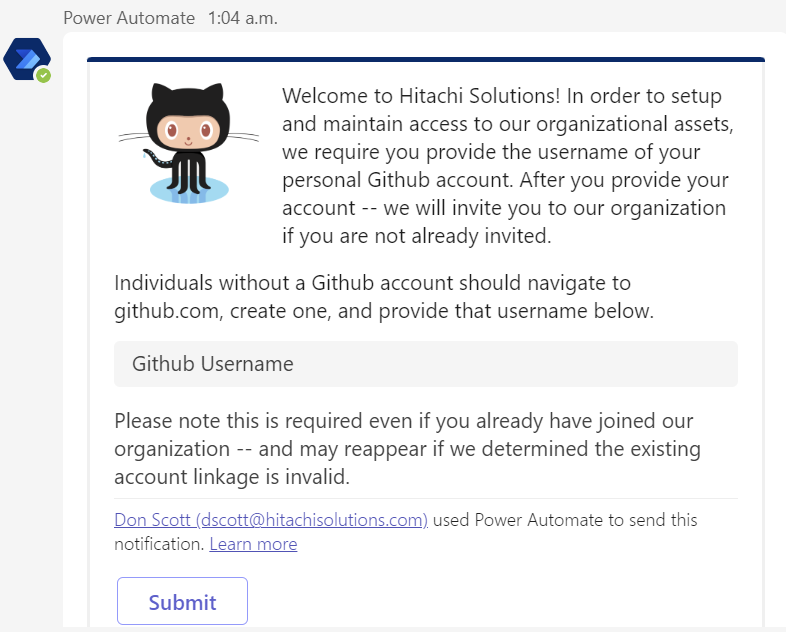
Please provide your GitHub username and press Submit.
🚧 Please, be aware that you have to provide GitHub account, not e-mail.
❌ my_account@email
✔️ my-github-account
Next time (5:00 AM UTC) workflow will process your stored GitHub account. After simple validation (your account should be valid and exists on GitHub) it will invite you to the organization.
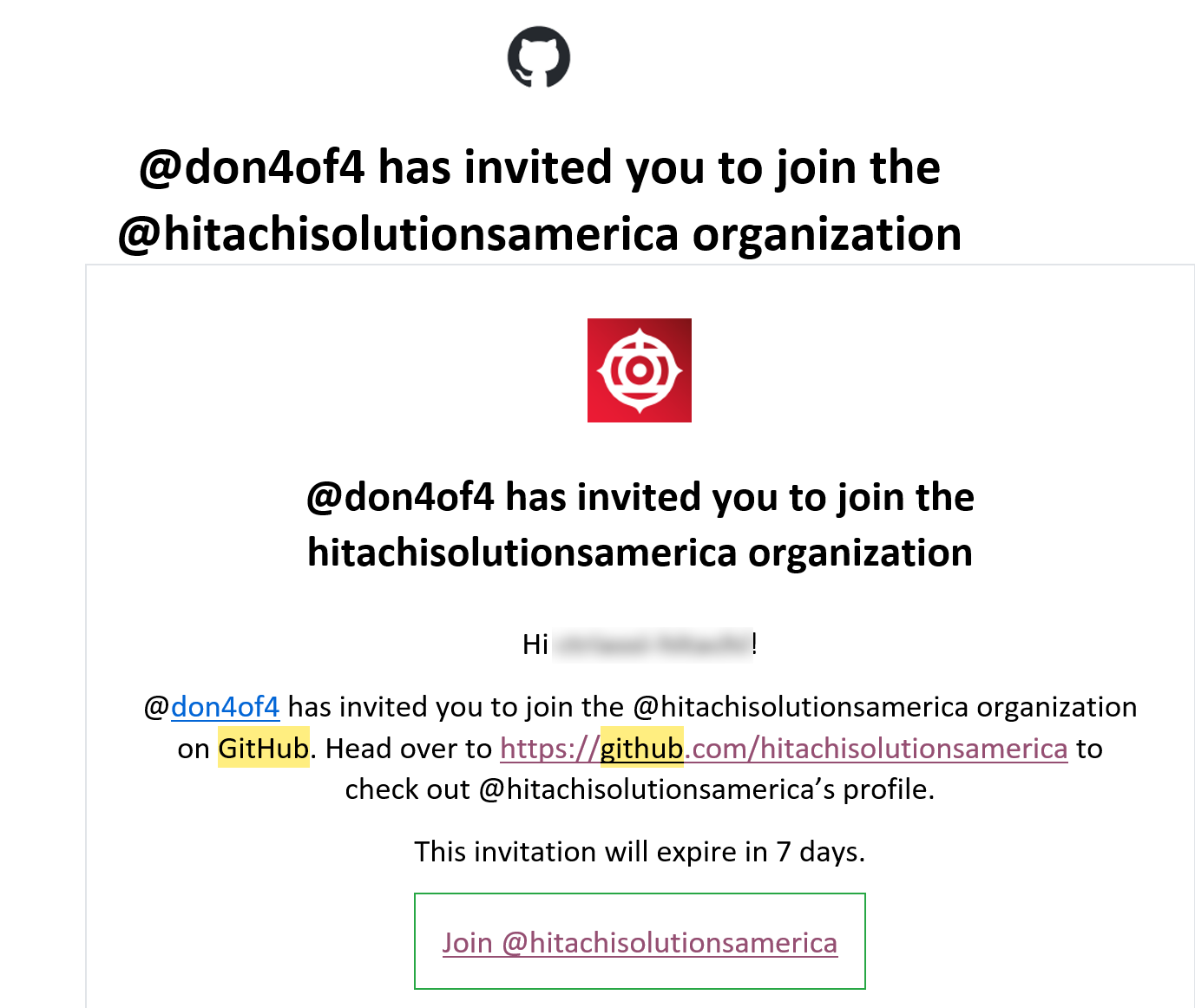
❗Please, check e-mail, associated with your GitHub account for invitation. There should be email from noreply@github.com with title "[GitHub] @don4of4 has invited you to join the *organization". Proceed with instructions in that e-mail.:heavy_exclamation_mark: You have to push "Join @empowerplatform" button** and proceed with invitation accept on GitHub page.
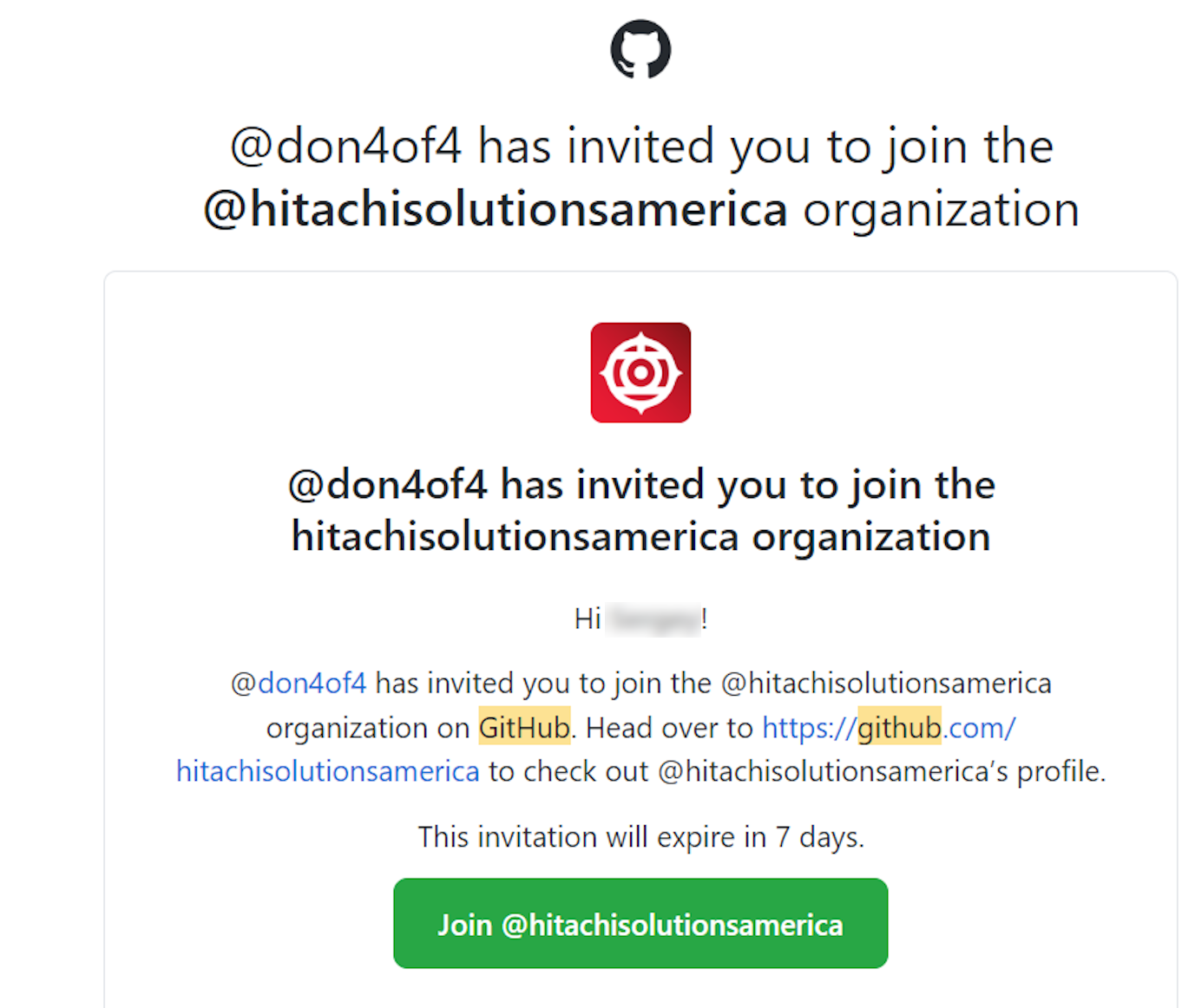
❗Sometimes button might be not visible because of pictures hidden by the security.
❗ If there are any errors, either you provided e-mail instead of id or account that do not exists, you will be re-requested for the correct GitHub account. Next processing will be on the next workflow run only.
After adding you to the GitHub background synchronization application will grant you access to all required repositories in 5 to 15 minutes.